Instructions et exigences de configuration de l'atelier
Protégez votre compte et votre progression. Utilisez toujours une fenêtre de navigation privée et les identifiants de l'atelier pour exécuter cet atelier.
Deploying Google Kubernetes Engine Clusters from Cloud Shell
Ce contenu n'est pas encore optimisé pour les appareils mobiles.
Pour une expérience optimale, veuillez accéder à notre site sur un ordinateur de bureau en utilisant un lien envoyé par e-mail.
Overview
In this lab, you use the command line to build GKE clusters. You inspect the kubeconfig file, and you use kubectl to manipulate the cluster.
Objectives
In this lab, you learn how to perform the following tasks:
Use kubectl to build and manipulate GKE clusters
Use kubectl and configuration files to deploy Pods
Use Container Registry to store and deploy containers
Lab setup
Access your lab
For each lab, you get a new Google Cloud project and set of resources for a fixed time at no cost.
Sign in to Google Skills using an incognito window.
Note the lab's access time (for example, 1:15:00), and make sure you can finish within that time.
There is no pause feature. You can restart if needed, but you have to start at the beginning.
When ready, click Start lab.
Note your lab credentials (Username and Password). You will use them to sign in to the Google Cloud Console.
Click Open Google Console.
Click Use another account and copy/paste credentials for this lab into the prompts.
If you use other credentials, you'll receive errors or incur charges.
Accept the terms and skip the recovery resource page.
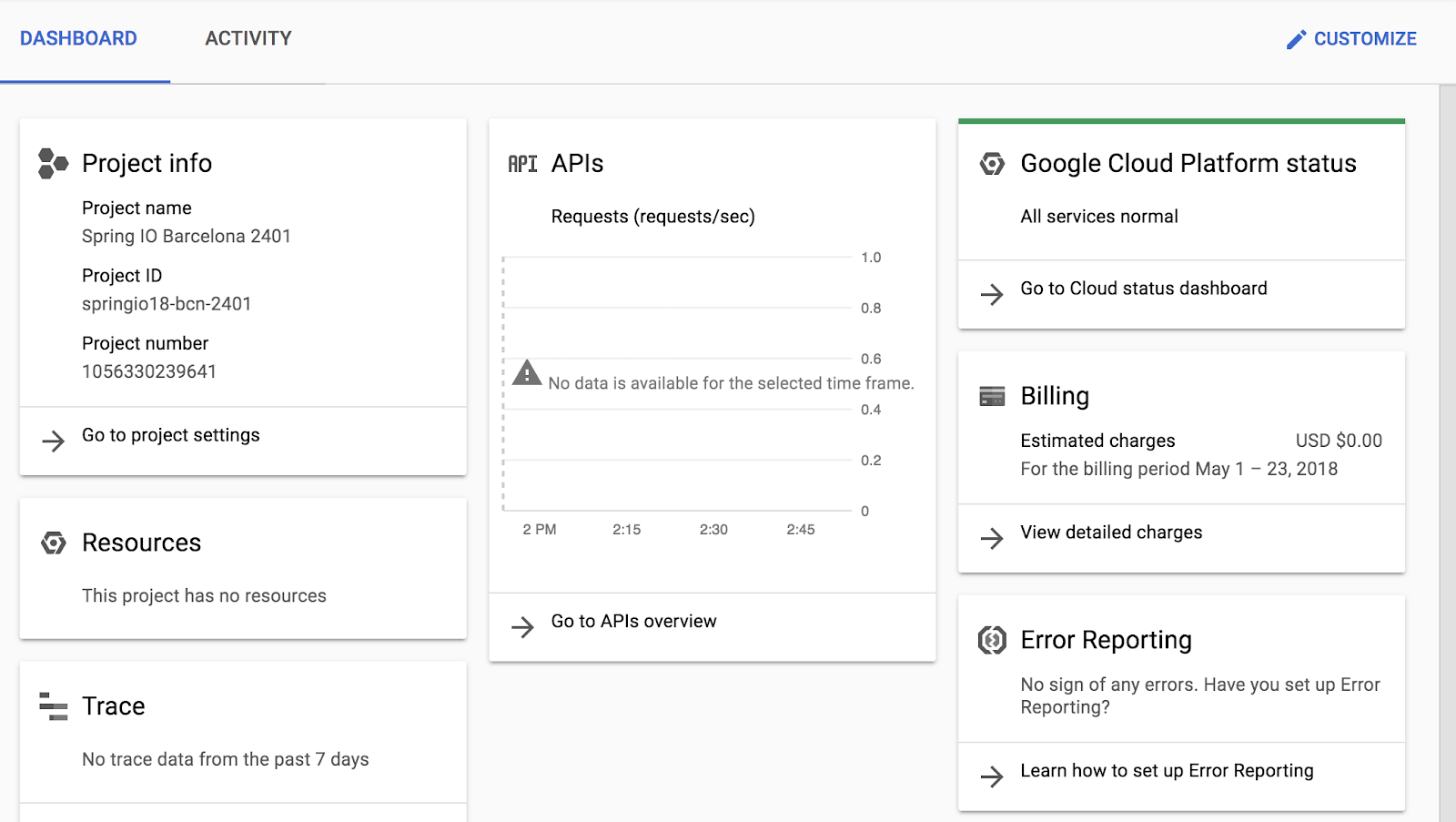
After you complete the initial sign-in steps, the project dashboard appears.
Open Cloud Shell
You will do most of the work in Cloud Shell. Cloud Shell is a command-line environment running in the Google cloud. This Debian-based virtual machine is loaded with all the management tools you need (such as docker, gcloud,gsutil, and kubectl) and provides a persistent 5GB home directory.
On the Google Cloud console title bar, click Activate Cloud Shell ().
Click Continue.
After a moment of provisioning, the Cloud Shell prompt appears:
Task 1. Deploy GKE clusters
In this task, you use Cloud Shell to deploy GKE clusters.
In Cloud Shell, type the following command to set the environment variable for the zone and cluster name:
export my_zone={{{ project_0.default_zone | ZONE }}}
export my_cluster=standard-cluster-1
In Cloud Shell, type the following command to create a Kubernetes cluster:
You will see a number of warnings highlighting changes to default GKE cluster settings that were introduced as newer versions of Kubernetes have been adopted by GKE.
Note: You need to wait a few minutes for the cluster deployment to complete.
When deployment is complete, the Google Cloud Console Kubernetes Engine > Clusters page should look like the screenshot.
Click Check my progress to verify the objective.
Deploy GKE clusters
Task 2. Modify GKE clusters
It is easy to modify many of the parameters of existing clusters in Google Cloud Console or Cloud Shell. In this task, you use Cloud Shell to modify the number of nodes in a GKE cluster.
In Cloud Shell, execute the following command to modify standard-cluster-1 to have four nodes:
gcloud container clusters resize $my_cluster --zone $my_zone --num-nodes=4
Note: When issuing cluster commands, you typically must specify both the cluster name and the cluster location (region or zone).
When prompted with Do you want to continue (y/n), press y to confirm.
Note: You need to wait a few minutes for the cluster deployment to complete.
When the operation completes, you should see on the Google Cloud Console Kubernetes Engine > Clusters page that the cluster now has four nodes. You can modify many other cluster parameters by using the gcloud container cluster command.
Click Check my progress to verify the objective.
Modify GKE clusters
Task 3. Connect to a GKE cluster
In this task, you use Cloud Shell to authenticate to a GKE cluster and then inspect the kubectl configuration files.
Authentication in Kubernetes applies both to communicating with the cluster from an external client through the kube-APIserver running on the master and to cluster containers communicating within the cluster or externally.
In Kubernetes, authentication can take several forms. For GKE, authentication is typically handled with OAuth2 tokens and can be managed through Cloud Identity and Access Management across the project as a whole and, optionally, through role-based access control which can be defined and configured within each cluster.
In GKE, cluster containers can use service accounts to authenticate to and access external resources.
Note: For Kubernetes versions before 1.12, client certificates and basic authentication are not disabled by default. These are lower security methods of authentication and should be disabled to increase cluster security. (For versions 1.12 and later both of these methods are disabled by default.)
To create a kubeconfig file with the credentials of the current user (to allow authentication) and provide the endpoint details for a specific cluster (to allow communicating with that cluster through the kubectl command-line tool), execute the following command:
This command creates a .kube directory in your home directory if it doesn't already exist. In the .kube directory, the command creates a file named config if it doesn't already exist, which is used to store the authentication and configuration information. The config file is typically called the kubeconfig file.
Open the kubeconfig file with the nano text editor:
nano ~/.kube/config
You can now examine all of the authentication and endpoint configuration data stored in the file. Information for the cluster should appear.. The information was populated during cluster creation.
Press CTRL+X to exit the nano editor.
Note: The kubeconfig file can contain information for many clusters. The currently active context (the cluster that kubectl commands manipulate) is indicated by the current-context property.
You don't have to run the gcloud container clusters get-credentials command to populate the kubeconfig file for clusters that you created in the same context (the same user in the same environment), because those clusters already have their details populated when the cluster is created. But you have to run the command to connect to a cluster created by another user or in another environment. The command is also an easy way to switch the active context to a different cluster.
Task 4. Use kubectl to inspect a GKE cluster
In this task, you use Cloud Shell and kubectl to inspect a GKE cluster.
After the kubeconfig file is populated and the active context is set to a particular cluster, you can use the kubectl command-line tool to execute commands against the cluster. Most such commands ultimately trigger a REST API call against the master API server, which triggers the associated action.
In Cloud Shell, execute the following command to print out the content of the kubeconfig file:
kubectl config view
The sensitive certificate data is replaced with DATA+OMITTED.
In Cloud Shell, execute the following command to print out the cluster information for the active context:
kubectl cluster-info
The output describes the active context cluster.
Output:
Kubernetes master is running at https://104.155.191.14
GLBCDefaultBackend is running at https://104.155.191.14/api/v1/namespaces/kube-system/services/default-http-backend:http/proxy
Heapster is running at https://104.155.191.14/api/v1/namespaces/kube-system/services/heapster/proxy
KubeDNS is running at https://104.155.191.14/api/v1/namespaces/kube-system/services/kube-dns:dns/proxy
Metrics-server is running at https://104.155.191.14/api/v1/namespaces/kube-system/services/https:metrics-server:/proxy
To further debug and diagnose cluster problems, use 'kubectl cluster-info dump'.
In Cloud Shell, execute the following command to print out the active context:
kubectl config current-context
A line of output indicates the active context cluster.
PROJECT_ID is your project ID. This information is the same as the information in the current-context property of the kubeconfig file.
In Cloud Shell, execute the following command to print out some details for all the cluster contexts in the kubeconfig file:
kubectl config get-contexts
Several lines of output indicate details about the cluster you created and an indication of which is the active context cluster. In general, this command lists some details of the clusters present in the user's kubeconfig file, including any other clusters that were created by the user as well as any manually added to the kubeconfig file.
In Cloud Shell, execute the following command to change the active context:
kubectl config use-context gke_${GOOGLE_CLOUD_PROJECT}_{{{ project_0.default_zone | ZONE }}}_standard-cluster-1
In this case you have only one cluster, so this command didn't change anything.
However in the future you may have more than one cluster in a project. You can use this approach to switch the active context when your kubeconfig file has the credentials and configuration for several clusters already populated. This approach requires the full name of the cluster, which includes the gke prefix, the project ID, the location, and the display name, all concatenated with underscores.
In Cloud Shell, execute the following command to view the resource usage across the nodes of the cluster:
kubectl top nodes
The output should look like the following example.
Another top command (kubectl top pods) shows similar information across all the deployed Pods in the cluster.
In Cloud Shell, execute the following command to enable bash autocompletion for kubectl:
source <(kubectl completion bash)
This command produces no output.
In Cloud Shell, type kubectl followed by a space and press the Tab key twice.
The shell outputs all the possible commands:
In Cloud Shell, type kubectl co and press the Tab key twice.
The shell outputs all commands starting with "co" (or any other text you type).
Task 5. Deploy Pods to GKE clusters
In this task, you use Cloud Shell to deploy Pods to GKE clusters.
Use kubectl to deploy Pods to GKE
Kubernetes introduces the abstraction of a Pod to group one or more related containers as a single entity to be scheduled and deployed as a unit on the same node. You can deploy a Pod that is a single container from a single container image. Or a Pod can contain many containers from many container images.
In Cloud Shell, execute the following command to deploy nginx as a Pod named nginx-1:
kubectl create deployment --image nginx nginx-1
This command creates a Pod named nginx with a container running the nginx image. When a repository isn't specified, the default behavior is to try and find the image either locally or in the Docker public registry. In this case, the image is pulled from the Docker public registry.
In Cloud Shell, execute the following command to view all the deployed Pods in the active context cluster:
kubectl get pods
The output should look like the following example, but with a slightly different Pod name.
Output:
NAME READY STATUS RESTARTS AGE
nginx-1-74c7bbdb84-nvwsc 1/1 Running 0 9s
You will now enter your Pod name into a variable that we will use throughout this lab. Using variables like this can help you minimize human error when typing long names. You must type your Pod's unique name in place of [your_pod_name]:
export my_nginx_pod=[your_pod_name]
Example:
export my_nginx_pod=nginx-1-74c7bbdb84-nvwsc
Confirm that you have set the environment variable successfully by having the shell echo the value back to you:
echo $my_nginx_pod
Output:
nginx-1-74c7bbdb84-nvwsc
In Cloud Shell, execute the following command to view the complete details of the Pod you just created:
kubectl describe pod $my_nginx_pod
The output should look like the following example. Details of the Pod, as well as its status and conditions and the events in its lifecycle, are displayed.
Output:
Name: nginx-1-74c7bbdb84-nvwsc
Namespace: default
Node: gke-standard-cluster-1-default-pool-bc4ec334-0hmk/10.128.0.5
Start Time: Sun, 16 Dec 2018 14:29:38 -0500
Labels: pod-template-hash=3073668640
run=nginx-1
Annotations: kubernetes.io/limit-ranger=LimitRanger plugin set: cpu ...
Status: Running
IP: 10.8.3.3
Controlled By: ReplicaSet/nginx-1-74c7bbdb84
Containers:
nginx-1:
Container ID: docker://dce87d274e6d25300b07ec244c265d42806579fee...
Image: nginx:latest
Image ID: docker-pullable://nginx@sha256:87e9b6904b4286b8d41...
Port:
Host Port:
State: Running
Started: Sun, 16 Dec 2018 14:29:44 -0500
Ready: True
Restart Count: 0
Requests:
cpu: 100m
Environment:
Mounts:
/var/run/secrets/kubernetes.io/serviceaccount from default-tok...
Conditions:
Type Status
Initialized True
Ready True
PodScheduled True
Volumes:
default-token-nphcg:
Type: Secret (a volume populated by a Secret)
SecretName: default-token-nphcg
Optional: false
QoS Class: Burstable
Node-Selectors:
Tolerations: node.kubernetes.io/not-ready:NoExecute for 300s
node.kubernetes.io/unreachable:NoExecute for 300s
Events:
Type Reason Age From Message
---- ------ ---- ---- -------
Normal Sche... 1m default-scheduler Successf...
Normal Succ... 1m kubelet, gke-standard-cl... MountVol...
Normal Pull... 1m kubelet, gke-standard-cl... pulling ...
Normal Pull... 1m kubelet, gke-standard-cl... Successf...
Normal Crea... 1m kubelet, gke-standard-cl... Created ...
Normal Star... 1m kubelet, gke-standard-cl... Started ...
Push a file into a container
To be able to serve static content through the nginx web server, you must create and place a file into the container.
In Cloud Shell, type the following commands to open a file named test.html in the nano text editor:
nano ~/test.html
Add the following text (shell script) to the empty test.html file:
<html> <header><title>This is title</title></header>
<body> Hello world </body>
</html>
Press CTRL+X, then press Y and enter to save the file and exit the nano editor.
In Cloud Shell, execute the following command to place the file into the appropriate location within the nginx container in the nginx Pod to be served statically:
This command copies the test.html file from the local home directory to the /usr/share/nginx/html directory of the first container in the nginx Pod. You could specify other containers in a multi-container Pod by using the -c option, followed by the name of the container.
Expose the Pod for testing
To expose a Pod to clients outside the cluster requires a service. Services are discussed elsewhere in the course and used extensively in other labs. You can use a simple command to create a service to expose a Pod.
In Cloud Shell, execute the following command to create a service to expose our nginx Pod externally:
kubectl expose pod $my_nginx_pod --port 80 --type LoadBalancer
This command creates a LoadBalancer service, which allows the nginx Pod to be accessed from internet addresses outside of the cluster.
In Cloud Shell, execute the following command to view details about services in the cluster:
kubectl get services
The output should look like the following example. You use the external IP address in the next step.
Note: You might have to repeat the command a few times before the new service has its external IP populated.
Output:
NAME TYPE CLUSTER-IP EXTERNAL-IP PORT(S) AGE
kubernetes ClusterIP 10.11.240.1 443/TCP 1h
nginx-1-7...wsc LoadBalancer 10.11.240.87 80:31695/TCP 3s
The kubernetes service is one of the default services created or used by the cluster. The nginx service that you created is also displayed.
You may need to re-run this command several times before the External IP address is displayed.
Output:
NAME TYPE CLUSTER-IP EXTERNAL-IP PORT(S) AGE
kubernetes ClusterIP 10.11.240.1 443/TCP 1h
nginx-1-7...wsc LoadBalancer 10.11.240.87 104.154.177.46 80:31695/TCP 1m
Click Check my progress to verify the objective.
Deploy Pods to GKE clusters
In Cloud Shell, execute the following command to verify that the nginx container is serving the static HTML file that you copied.
You replace [EXTERNAL_IP] with the external IP address of your service that you obtained from the output of the previous step.
curl http://[EXTERNAL_IP]/test.html
The file contents appear in the output. You can go to the same address in your browser to see the file rendered as HTML.
Example:
curl http://104.154.177.46/test.html
This is title
Hello world
In Cloud Shell, execute the following command to view the resources being used by the nginx Pod:
kubectl top pods
Output:
NAME CPU(cores) MEMORY(bytes)
nginx-1-74c7bbdb84-nvwsc 0m 2Mi
Task 6. Introspect GKE Pods
In this task, you connect to a Pod to adjust settings, edit files, and make other live changes to the Pod.
Note: Use this process only when troubleshooting or experimenting. Because the changes you make are not made to the source image of the Pod, they won't be present in any replicas.
Prepare the environment
The preferred way of deploying Pods and other resources to Kubernetes is through configuration files, which are sometimes called manifest files. Configuration files are typically written in the YAML syntax, specifying the details of the resource. With configuration files, you can more easily specify complex options than with a long line of command-line arguments.
YAML syntax is similar to, but more concise than, JSON syntax and it enables the same kind of hierarchical structuring of objects and properties. The source repository for the lab contains sample YAML files that have been prepared for you.
In Cloud Shell enter the following command to clone the repository to the lab Cloud Shell:
To deploy your manifest, execute the following command:
kubectl apply -f ./new-nginx-pod.yaml
Click Check my progress to verify the objective.
Deploy manifest file for a Pod called new-nginx
To see a list of Pods, execute the following command:
kubectl get pods
The output should look like the example.
Output:
NAME READY STATUS RESTARTS AGE
new-nginx 1/1 Running 0 9s
nginx-1-74c7bbdb84-nvwsc 1/1 Running 0 55m
You can see your new nginx Pod as well as the one we created earlier in the lab.
Use shell redirection to connect to a Pod
Some container images include a shell environment that you can launch. This shell environment might be more convenient than executing individual commands with kubectl. For instance, the nginx image includes a bash shell. In this task you use shell redirection to connect to the bash shell in your new nginx pod to carry out a sequence of actions.
In Cloud Shell, execute the following command to start an interactive bash shell in the nginx container:
kubectl exec -it new-nginx -- /bin/bash
A new shell prompt appears.
Output:
root@new-nginx:/#
You have started an interactive bash shell in the container of the new-nginx Pod. If the Pod had several containers, you could specify one by name with the -c option.
Because the nginx container image has no text editing tools by default, you need to install one.
In Cloud Shell, in the nginx bash shell, execute the following commands to install the nano text editor:
apt-get update
apt-get install nano
When prompted with Do you want to continue (Y/n), press y to confirm.
You need to create a test.html file in the static served directory on the nginx container.
In Cloud Shell, in the nginx bash shell, execute the following commands to switch to the static files directory and create a test.html file:
cd /usr/share/nginx/html
nano test.html
In Cloud Shell, in the nginx bash shell nano session, type the following text:
<html> <header><title>This is title</title></header>
<body> Hello world </body>
</html>
Press CTRL+X, then press Y and enter to save the file and exit the nano editor.
In Cloud Shell, in the nginx bash shell, execute the following command to exit the nginx bash shell:
exit
To connect to and test the modified nginx container (with the new static HTML file), you could create a service. An easier way is to use port forwarding to connect to the Pod directly from Cloud Shell.
In Cloud Shell, execute the following command to set up port forwarding from Cloud Shell to the nginx Pod (from port 10081 of the Cloud Shell VM to port 80 of the nginx container):
kubectl port-forward new-nginx 10081:80
The output should look like the example.
Output:
Forwarding from 127.0.0.1:10081 -> 80
Forwarding from [::1]:10081 -> 80
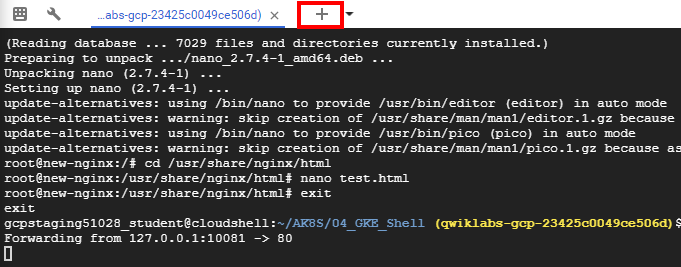
This is a foreground process, so you need to open another Cloud Shell instance to test.
In the Cloud Shell menu bar, click the plus sign (+) icon to start a new Cloud Shell session.
A second Cloud Shell session appears in your Cloud Shell window. You can switch between sessions by clicking the titles in the menu bar.
In the second Cloud Shell session, execute the following command to test the modified nginx container through the port forwarding:
curl http://127.0.0.1:10081/test.html
The HTML text you placed in the test.html file is displayed.
<html> <header><title>This is title</title></header>
<body> Hello world </body>
</html>
View the logs of a Pod
In the Cloud Shell menu bar, click the plus sign (+) icon to start another new Cloud Shell session.
A third Cloud Shell session appears in your Cloud Shell window. As before, you can switch sessions by clicking them in the menu bar.
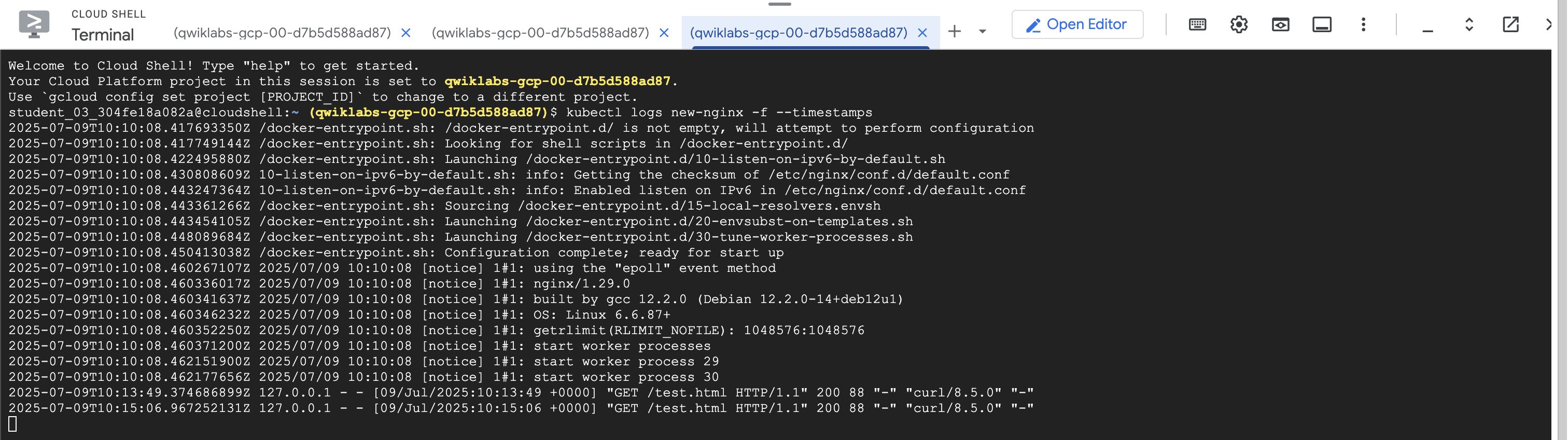
In the third Cloud Shell window, execute the following command to display the logs and to stream new logs as they arrive (and also include timestamps) for the new-nginx Pod:
kubectl logs new-nginx -f --timestamps
You will see the logs display in this new window.
Return to the second Cloud Shell window and re-run the curl command to generate some traffic on the Pod.
Review the additional log messages as they appear in the third Cloud Shell window.
Close the third Cloud Shell window to stop displaying the log messages.
Close the original Cloud Shell window to stop the port forwarding process.
End your lab
When you have completed your lab, click End Lab. Google Skills removes the resources you’ve used and cleans the account for you.
You will be given an opportunity to rate the lab experience. Select the applicable number of stars, type a comment, and then click Submit.
The number of stars indicates the following:
1 star = Very dissatisfied
2 stars = Dissatisfied
3 stars = Neutral
4 stars = Satisfied
5 stars = Very satisfied
You can close the dialog box if you don't want to provide feedback.
For feedback, suggestions, or corrections, please use the Support tab.
Copyright 2026 Google LLC All rights reserved. Google and the Google logo are trademarks of Google LLC. All other company and product names may be trademarks of the respective companies with which they are associated.
Les ateliers créent un projet Google Cloud et des ressources pour une durée déterminée.
Les ateliers doivent être effectués dans le délai imparti et ne peuvent pas être mis en pause. Si vous quittez l'atelier, vous devrez le recommencer depuis le début.
En haut à gauche de l'écran, cliquez sur Démarrer l'atelier pour commencer.
Utilisez la navigation privée
Copiez le nom d'utilisateur et le mot de passe fournis pour l'atelier
Cliquez sur Ouvrir la console en navigation privée
Connectez-vous à la console
Connectez-vous à l'aide des identifiants qui vous ont été attribués pour l'atelier. L'utilisation d'autres identifiants peut entraîner des erreurs ou des frais.
Acceptez les conditions d'utilisation et ignorez la page concernant les ressources de récupération des données.
Ne cliquez pas sur Terminer l'atelier, à moins que vous n'ayez terminé l'atelier ou que vous ne vouliez le recommencer, car cela effacera votre travail et supprimera le projet.
Ce contenu n'est pas disponible pour le moment
Nous vous préviendrons par e-mail lorsqu'il sera disponible
Parfait !
Nous vous contacterons par e-mail s'il devient disponible
Un atelier à la fois
Confirmez pour mettre fin à tous les ateliers existants et démarrer celui-ci
Utilisez la navigation privée pour effectuer l'atelier
Le meilleur moyen d'exécuter cet atelier consiste à utiliser une fenêtre de navigation privée. Vous éviterez ainsi les conflits entre votre compte personnel et le compte temporaire de participant, qui pourraient entraîner des frais supplémentaires facturés sur votre compte personnel.
Architecting with Google Kubernetes Engine: Creating a GKE Cluster via Cloud Shell
Durée :
0 min de configuration
·
Accessible pendant 60 min
·
Terminé après 60 min


 ).
).