Dieser Inhalt ist noch nicht für Mobilgeräte optimiert.
Die Lernumgebung funktioniert am besten, wenn Sie auf einem Computer über einen per E‑Mail gesendeten Link darauf zugreifen.
Overview
In this lab, you create a Google Kubernetes Engine cluster containing several containers, each containing a web server. You place a load balancer in front of the cluster and view its contents.
Objectives
In this lab, you learn how to perform the following tasks:
Deploy and manage Docker containers using kubectl.
Task 1. Sign in to the Google Cloud
For each lab, you get a new Google Cloud project and set of resources for a fixed time at no cost.
Sign in to Google Skills using an incognito window.
Note the lab's access time (for example, 1:15:00), and make sure you can finish within that time.
There is no pause feature. You can restart if needed, but you have to start at the beginning.
When ready, click Start lab.
Note your lab credentials (Username and Password). You will use them to sign in to the Google Cloud Console.
Click Open Google Console.
Click Use another account and copy/paste credentials for this lab into the prompts.
If you use other credentials, you'll receive errors or incur charges.
Accept the terms and skip the recovery resource page.
Task 2. Confirm that needed APIs are enabled
Make a note of the name of your Google Cloud project. This value is shown in the top bar of the Google Cloud Console. It will be of the form qwiklabs-gcp- followed by hexadecimal numbers.
In the Google Cloud Console, on the Navigation menu (), click APIs & Services.
Scroll down in the list of enabled APIs, and confirm that both of these APIs are enabled:
Kubernetes Engine API
Container Registry API
If either API is missing, click Enable APIs and Services at the top. Search for the above APIs by name and enable each for your current project. (You noted the name of your GCP project above.)
Task 3. Start a Kubernetes Engine cluster
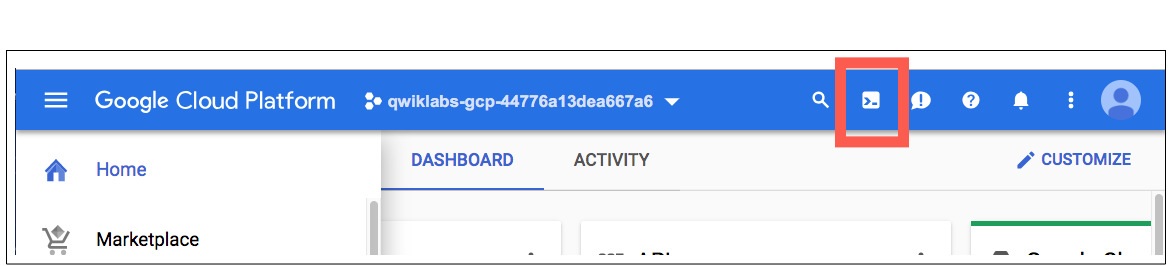
In Google Cloud console, on the top right toolbar, click the Activate Cloud Shell button.
Click Continue.
At the Cloud Shell prompt, type the following command to export the environment variable called MY_ZONE.
It takes several minutes to create a cluster as Kubernetes Engine provisions virtual machines for you.
After the cluster is created, check your installed version of Kubernetes using the kubectl version command:
kubectl version
The gcloud container clusters create command automatically authenticated kubectl for you.
View your running nodes in the GCP Console. On the Navigation menu (), click Compute Engine > VM Instances.
Your Kubernetes cluster is now ready for use.
Click Check my progress to verify the objective.
Start a Kubernetes Engine cluster
Task 4. Run and deploy a container
From your Cloud Shell prompt, launch a single instance of the nginx container. (Nginx is a popular web server.)
kubectl create deploy nginx --image=nginx:1.17.10
In Kubernetes, all containers run in pods. This use of the kubectl create command caused Kubernetes to create a deployment consisting of a single pod containing the nginx container. A Kubernetes deployment keeps a given number of pods up and running even in the event of failures among the nodes on which they run. In this command, you launched the default number of pods, which is 1.
Note: If you see any deprecation warning about future versions, you can simply ignore it for now and can proceed further.
Kubernetes created a service and an external load balancer with a public IP address attached to it. The IP address remains the same for the life of the service. Any network traffic to that public IP address is routed to pods behind the service: in this case, the nginx pod.
View the new service:
kubectl get services
You can use the displayed external IP address to test and contact the nginx container remotely.
It may take a few seconds before the External-IP field is populated for your service. This is normal. Just re-run the kubectl get services command every few seconds until the field is populated.
Open a new web browser tab and paste your cluster's external IP address into the address bar. The default home page of the Nginx browser is displayed.
Scale up the number of pods running on your service:
kubectl scale deployment nginx --replicas 3
Scaling up a deployment is useful when you want to increase available resources for an application that is becoming more popular.
Confirm that Kubernetes has updated the number of pods:
kubectl get pods
Confirm that your external IP address has not changed:
kubectl get services
Return to the web browser tab in which you viewed your cluster's external IP address. Refresh the page to confirm that the nginx web server is still responding.
Click Check my progress to verify the objective.
Run and deploy a container
Congratulations!
In this lab, you configured a Kubernetes cluster in Kubernetes Engine. You populated the cluster with several pods containing an application, exposed the application, and scaled the application.
End your lab
When you have completed your lab, click End Lab. Google Skills removes the resources you’ve used and cleans the account for you.
You will be given an opportunity to rate the lab experience. Select the applicable number of stars, type a comment, and then click Submit.
The number of stars indicates the following:
1 star = Very dissatisfied
2 stars = Dissatisfied
3 stars = Neutral
4 stars = Satisfied
5 stars = Very satisfied
You can close the dialog box if you don't want to provide feedback.
For feedback, suggestions, or corrections, please use the Support tab.
Copyright 2026 Google LLC All rights reserved. Google and the Google logo are trademarks of Google LLC. All other company and product names may be trademarks of the respective companies with which they are associated.
Labs erstellen ein Google Cloud-Projekt und Ressourcen für einen bestimmten Zeitraum
Labs haben ein Zeitlimit und keine Pausenfunktion. Wenn Sie das Lab beenden, müssen Sie von vorne beginnen.
Klicken Sie links oben auf dem Bildschirm auf Lab starten, um zu beginnen
Privates Surfen verwenden
Kopieren Sie den bereitgestellten Nutzernamen und das Passwort für das Lab
Klicken Sie im privaten Modus auf Konsole öffnen
In der Konsole anmelden
Melden Sie sich mit Ihren Lab-Anmeldedaten an. Wenn Sie andere Anmeldedaten verwenden, kann dies zu Fehlern führen oder es fallen Kosten an.
Akzeptieren Sie die Nutzungsbedingungen und überspringen Sie die Seite zur Wiederherstellung der Ressourcen
Klicken Sie erst auf Lab beenden, wenn Sie das Lab abgeschlossen haben oder es neu starten möchten. Andernfalls werden Ihre bisherige Arbeit und das Projekt gelöscht.
Diese Inhalte sind derzeit nicht verfügbar
Bei Verfügbarkeit des Labs benachrichtigen wir Sie per E-Mail
Sehr gut!
Bei Verfügbarkeit kontaktieren wir Sie per E-Mail
Es ist immer nur ein Lab möglich
Bestätigen Sie, dass Sie alle vorhandenen Labs beenden und dieses Lab starten möchten
Privates Surfen für das Lab verwenden
Am besten führen Sie dieses Lab in einem Inkognito- oder privaten Browserfenster aus. So vermeiden Sie Konflikte zwischen Ihrem privaten Konto und dem Teilnehmerkonto, die zusätzliche Kosten für Ihr privates Konto verursachen könnten.
In this lab you create a Google Kubernetes Engine cluster containing several containers, each containing a web server. You place a load balancer in front of the cluster and view its contents.


 ), click APIs & Services.